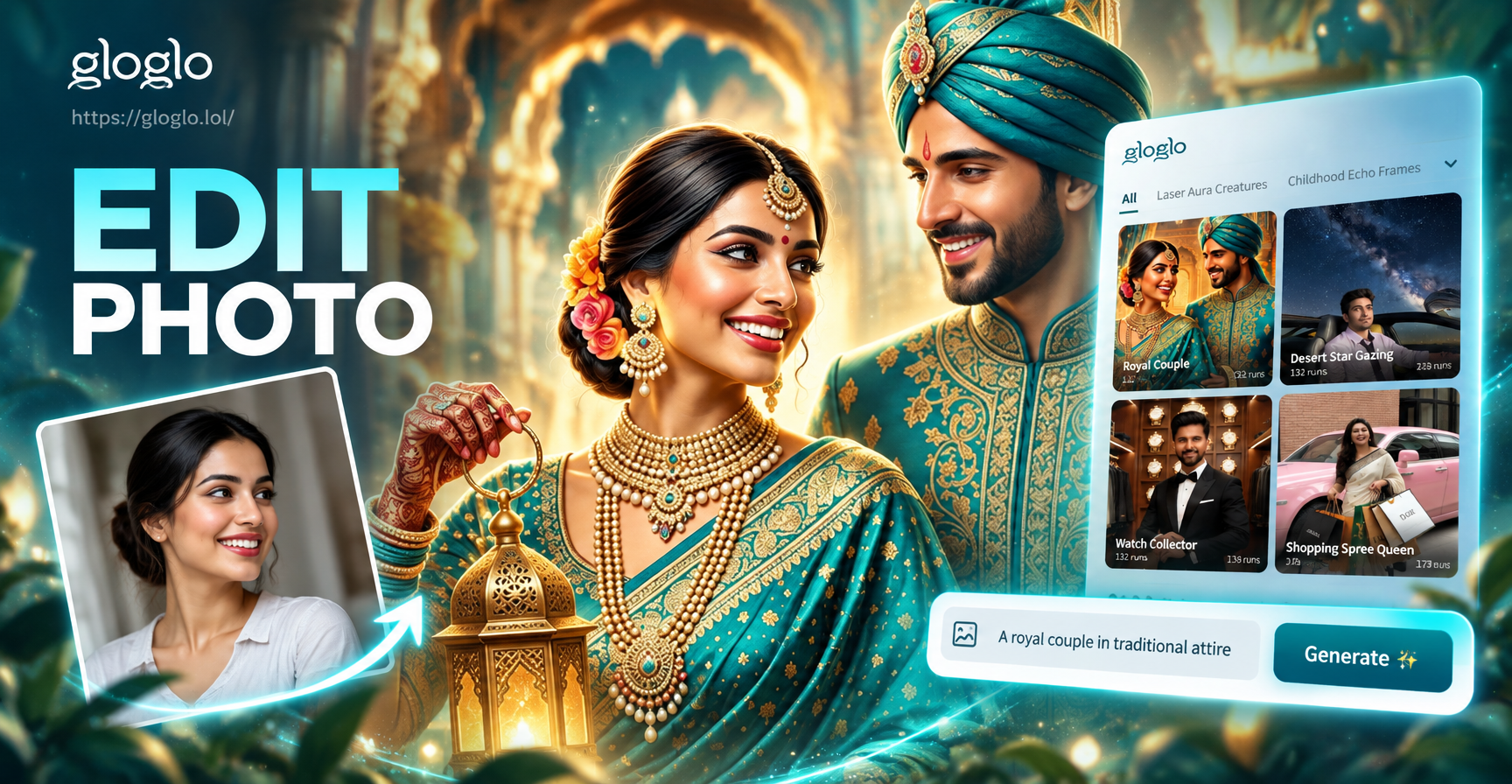
If you searched for an editing photo prompt, you probably want a ready to use instruction that changes a photo in a clear and repeatable way. A good editing photo prompt tells the AI what to keep, what to change, and what style to apply. This guide gives you 36 specific editing photo prompts, explains how to use them in the gloglo app, and shows you how to fix common weak results.
What Is an Editing Photo Prompt?
An editing photo prompt is a short text instruction that describes a visual change you want to make to an existing image. Instead of vague words like make it cool, a strong prompt names the light, color, texture, background, and subject details. In gloglo, you upload a photo, choose the image to image tool, and type one of the prompts below. The AI applies the edit while preserving the parts of the photo you do not mention.
36 Editing Photo Prompts You Can Copy
These prompts are grouped by the kind of edit. You can copy them exactly, or adapt them by replacing the color, location, or mood words.
Color and Light Edits
- Prompt: Convert this photo to black and white with deep contrast, bright whites, and subtle film grain.
- Prompt: Apply a pastel color grade with soft pink and blue tones, reduce saturation, and add a dreamy haze.
- Prompt: Make the colors vivid and saturated, boost green and blue, brighten shadows, and balance exposure.
- Prompt: Give the photo a vintage 1980s film look with warm amber tones, light leaks, and soft glow.
- Prompt: Change the color temperature to cool blue, add a light fog, and keep the subject sharp and clear.
- Prompt: Add a neon cyberpunk color palette with magenta and cyan highlights, dark shadows, and reflective surfaces.
Background and Composition Edits
- Prompt: Replace the background with a clean white studio backdrop, soft natural shadow, and keep subject lighting consistent.
- Prompt: Blur the background heavily and add bokeh lights, keep the main subject sharp and natural.
- Prompt: Remove the messy background and place the subject in a minimal gray concrete wall setting.
- Prompt: Extend the background into a wide landscape with mountains and a sunset sky behind the subject.
- Prompt: Change the background to an urban night city street with bokeh lights and wet pavement reflections.
- Prompt: Add a blurred office environment with warm desk lamps and a shallow depth of field.
Style and Artistic Effects
- Prompt: Transform this photo into a watercolor painting with visible paper texture, soft edges, and pastel colors.
- Prompt: Apply an anime style with clean line art, bright cel shading, large expressive eyes, and a colorful background.
- Prompt: Turn this photo into a 3D clay animation still with rounded shapes, soft matte texture, and cheerful lighting.
- Prompt: Redraw this as a Renaissance oil painting with dramatic lighting, rich fabrics, and classical composition.
- Prompt: Convert to a pencil sketch with fine hatching, subtle shading, and a white background.
- Prompt: Apply a Ghibli style illustration with soft natural light, detailed foliage, and a gentle fantasy mood.
Portrait and Subject Edits
- Prompt: Smooth skin naturally, remove blemishes, keep skin pores visible, brighten eyes, and add a soft smile.
- Prompt: Change the expression to a confident smile, lift the chin slightly, and add catchlights to the eyes.
- Prompt: Apply studio beauty lighting with a three point setup, remove harsh shadows, and add a subtle glow to the skin.
- Prompt: Change the hair color to chestnut brown with soft highlights and volume, keep the face unchanged.
- Prompt: Add natural looking makeup with neutral tones, light blush, and defined lashes.
- Prompt: Slim the face slightly, enhance jawline definition, and keep the result realistic and proportional.
Environment and Season Changes
- Prompt: Change the season to autumn with orange leaves, warm afternoon light, and a cozy atmosphere.
- Prompt: Turn the scene into a snowy winter landscape with falling snow, cool blue light, and soft shadows.
- Prompt: Add heavy rain with droplets on the lens, wet surfaces, and dramatic gray clouds.
- Prompt: Change the time of day to midnight with a starry sky, moonlight, and long soft shadows.
- Prompt: Transform the location into a tropical beach at noon with bright sun, clear water, and palm shadows.
- Prompt: Add a dense fog with low visibility, muted colors, and a mysterious mood while keeping the subject visible.
Cinematic and Mood Edits
- Prompt: Apply a cinematic teal and orange color grade, anamorphic lens flare, and a 2.39:1 widescreen feel.
- Prompt: Add dramatic low key lighting with strong shadows, a single rim light, and a film noir mood.
- Prompt: Create a soft dreamlike look with diffusion, pastel tones, glowing highlights, and a romantic atmosphere.
- Prompt: Make the photo look like a still from a sci fi movie with cool blue shadows, practical light sources, and futuristic details.
- Prompt: Add a warm nostalgic home video look with slight blur, light leaks, and soft grain.
- Prompt: Turn the image into a high fashion editorial with bold shadows, sharp contrast, and a clean minimal backdrop.
How to Use These Prompts in gloglo
gloglo is a mobile AI design app available on Google Play. Its image to image tool lets you upload a photo and apply a text instruction. You do not need design experience. Follow these steps.
- Download gloglo from Google Play and open the app.
- Select the image to image editing tool.
- Upload the photo you want to edit.
- Choose a style template if one fits, or type one of the prompts above.
- Generate the result and review it. If a detail is wrong, adjust the prompt and generate again.
How to Adapt These Editing Photo Prompts
Each prompt works better when you add a small detail about your image. For example, if the prompt says warm golden hour, you can change it to cool blue hour. If your photo shows a person, add keep the face unchanged when you edit hair, makeup, or background. You can also combine two prompts into one sentence, but avoid conflicting instructions. For example, do not ask for soft dreamy light and harsh high contrast at the same time.
Common Weak Results and How to Fix Them
If the edit looks wrong, the prompt is usually missing a constraint. Use these fixes.
- Wrong subject changes: Add keep the face unchanged or preserve the original identity.
- Over edited look: Add natural, realistic, subtle texture.
- Color casts: Add natural skin tones, accurate white balance.
- Busy backgrounds: Add simple background, shallow depth of field.
- Distorted hands or faces: Add correct anatomy, normal hands, natural proportions.
Why These Prompts Work
A strong editing photo prompt uses concrete visual language. It names the light source, the color palette, the texture, and the composition. It also sets limits, such as keep the subject sharp or keep the face unchanged. This helps the AI preserve what matters and change only what you describe. Vague prompts like make it look better do not give the model enough direction, so the results feel random.
Frequently Asked Questions About Editing Photo Prompts
Do I need to be a prompt engineer to use these?
No. These prompts are ready to copy and paste. You only need to replace a few words to fit your photo.
Can I use an editing photo prompt on any photo?
Yes. The prompts work on portraits, landscapes, product shots, and group photos. If the photo quality is low, the AI may add detail that was not there, so start with the clearest image you have.
What is the best tool for editing photo prompts?
The gloglo app is a good option because it combines image to image editing with many style templates. You can type a prompt, pick a template, or do both.