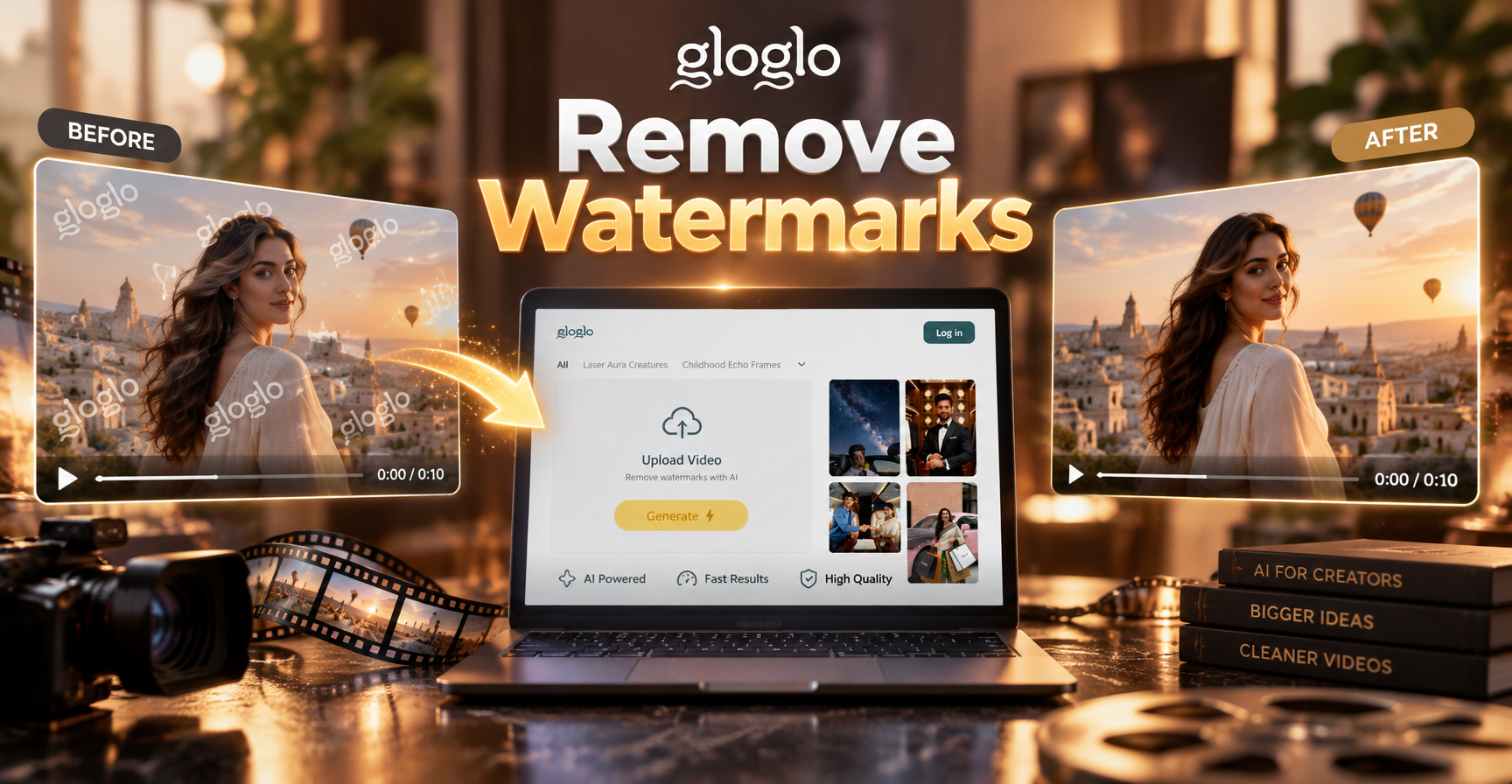
Understanding Watermarks on Videos
A watermark is a visible overlay, usually a logo, text, or pattern, placed on a video to indicate ownership or source. Many creators and stock platforms add watermarks to previews. While removing a watermark from content you do not own is illegal and unethical, there are legitimate reasons to remove watermarks from your own videos. For example, you might have lost the original clean file, or a client sent you a file with a temporary logo. This guide explains safe and practical methods to remove watermarks from videos using free tools, professional software, and AI editing techniques.
Method 1: Crop the Watermark Out
Cropping is the simplest way to remove a watermark that sits at the edge of a frame. Most video editors have a crop tool that lets you cut off the part of the video containing the watermark. This works well when the watermark is in a corner and cropping does not remove important subjects or text.
Steps to crop a watermark
- Open your video in a free editor like Clipchamp, CapCut, or iMovie.
- Locate the crop or transform tool in the editing panel.
- Drag the crop handles to exclude the area with the watermark.
- Preview the video to make sure no important content is lost.
- Export the video in your desired resolution.
Cropping reduces the overall frame size, so the resulting video may have a different aspect ratio. Always check the output before sharing. This method is best for watermarks in corners or along edges where the main subject remains centered.
Method 2: Blur or Pixelate the Watermark
If cropping would remove essential footage, you can cover the watermark with a blur or pixelation effect. This method does not remove the watermark but makes it unreadable. It is quick and works when the watermark sits over a static or uniform background.
How to blur a watermark
- Import your video into an editor that supports rectangular or oval masks, such as DaVinci Resolve or Premiere Pro.
- Add a blur effect to a duplicate layer or use the built-in mosaic tool.
- Place a mask over the watermark area and adjust its size.
- Track the mask if the watermark moves with the camera.
- Export the video.
This technique leaves a visible blurred patch, which may look unnatural on complex backgrounds. It is best for small, static watermarks that do not overlap important details.
Method 3: Use AI Inpainting Tools
AI inpainting is a more advanced approach that fills the watermark area with surrounding pixels, making it look like the watermark was never there. Several mobile apps and online tools now offer AI object removal for videos. These tools analyze the background and reconstruct missing detail automatically.
Popular AI tools for watermark removal
- CapCut's AI object remover
- HitPaw Watermark Remover
- Video Watermark Remover by Apowersoft
- Adobe Premiere Pro with Content-Aware Fill (manual but powerful)
AI tools work best on simple backgrounds with consistent texture. For complex or moving backgrounds, results may be imperfect. Always review the output frame by frame to catch any artifacts or smudges.
Method 4: Use the Clone Stamp or Patch Tool in Professional Software
Professional video editors like Adobe Premiere Pro and DaVinci Resolve provide tools similar to Photoshop's clone stamp. You can sample a clean area near the watermark and paint over it. This method gives precise control but requires more time and skill.
Basic workflow in Premiere Pro
- Import your video and create a duplicate layer.
- Apply the Clone Stamp effect from the Effects panel.
- Set the sample point to a clean area adjacent to the watermark.
- Paint over the watermark using keyframes to adjust position over time.
- Render and export.
This method is ideal for short clips where the watermark is small and the background is static. It can produce seamless results when done carefully. For moving shots, combine it with motion tracking.
Method 5: Dedicated Watermark Remover Mobile Apps
If you need a quick fix on your phone, several apps specialize in removing watermarks from videos. These apps often combine cropping, blurring, and AI inpainting in a simple interface. Popular options include Remove & Add Watermark, Video Eraser, and Snapseed (for images only). Always check app permissions and reviews before downloading.
Note that many free apps add their own watermark or require a subscription for HD export. Read the terms carefully before committing.
Method 6: Free Desktop Software (Shotcut and OpenShot)
For users who prefer open-source tools, Shotcut and OpenShot offer basic filters and masking that can be used to hide watermarks. Shotcut has a blur filter with a rectangular mask, while OpenShot supports simple cropping. These tools are free and cross-platform, making them a good starting point for casual edits.
Steps in Shotcut
- Import your video and drag it to the timeline.
- Add a blur filter and enable the mask option.
- Resize the mask to cover the watermark.
- Adjust the blur strength.
- Export the video.
Keep in mind that free tools may lack advanced AI inpainting, so results will be limited to blurring or cropping.
Legal and Ethical Considerations
Before removing any watermark, ask yourself: Do I own this video? If the answer is no, removing a watermark without permission is a copyright violation. Watermarks exist to protect intellectual property. Only remove watermarks from videos you created, videos you have a license for, or videos sent to you by the owner with permission to edit. If you need a clean version of a stock video, purchase the license from the platform. If you need a clean version of a client's video, ask them for the original file.
Using a blur or crop on a video that you do not own does not make the alteration legal. The underlying rights still belong to the creator. Always obtain written permission when in doubt.
Create Watermark-Free Videos from Scratch with gloglo
Instead of spending hours removing watermarks, consider creating original videos that are watermark-free by default. gloglo is an AI design app available on Google Play that lets you generate images and videos from simple text prompts. You can upload a photo and turn it into a video, apply artistic style filters, or create short animated clips from scratch. Because the content is generated by AI, it never carries a copyright watermark. Download gloglo and explore its style templates to produce unique, shareable videos for social media, presentations, or personal projects.
Tips for Better Watermark Removal Results
- Work with the highest resolution source video possible.
- Remove watermarks before adding other effects or filters.
- For moving watermarks, use tracking masks instead of static ones.
- Always compare the edited area with the original frame to catch artifacts.
- If AI inpainting produces smudges, try adjusting the brush size or using a different sample area.
Common Questions About Removing Watermarks
Can I remove a watermark from a video I downloaded from YouTube? No. Downloading videos from YouTube violates its terms of service, and removing watermarks from content you do not own is illegal. Instead, contact the creator for permission or use royalty-free stock footage.
Will blurring a watermark get me in trouble? If the video is not yours, even blurring the watermark is an infringement. The watermark signals ownership, and altering it does not change the underlying rights. Always have permission.
What is the fastest free method? Cropping is the fastest method if the watermark is at the edge. For central watermarks, use a free AI object remover, but expect quality trade-offs.
Do AI watermark removers work on moving backgrounds? Some advanced AI models can handle moving backgrounds, but results vary. For complex scenes, manual clone stamping in professional software remains the most reliable.
Conclusion
Removing watermarks from videos is possible with the right tools and techniques. Start with cropping or blurring for quick fixes, then move to AI inpainting or manual editing for cleaner results. Always respect copyright and only edit videos you own or have permission to modify. If you want to avoid watermarks altogether, try gloglo on Google Play to generate fresh, original video content with AI.