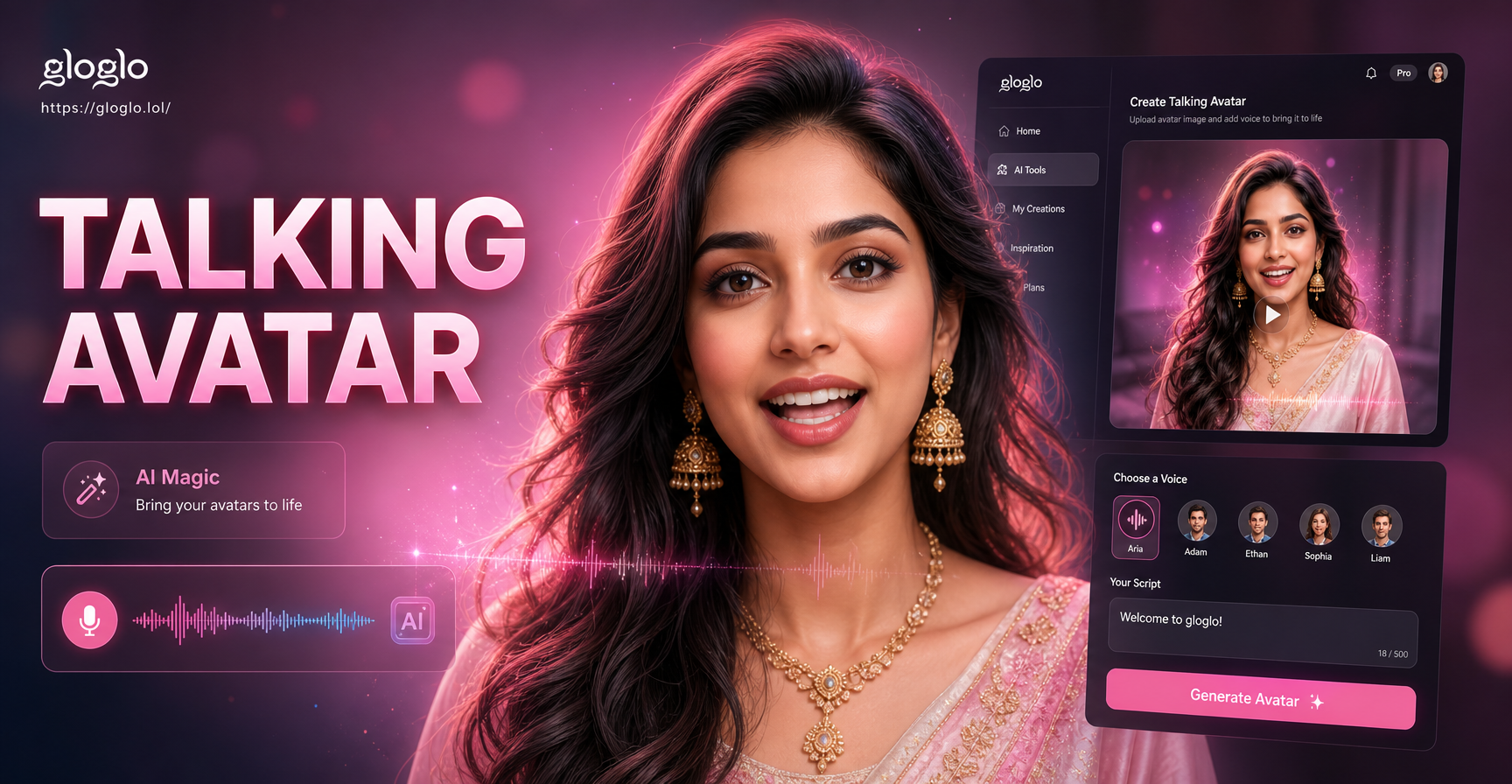
What Is a Talking Avatar?
A talking avatar is a digital character, often made from a real photo or an illustrated portrait, that appears to speak and move in a natural way. The mouth opens and closes in time with a voice track, the eyes blink, and the head may tilt or turn slightly. People use talking avatars for social media videos, online courses, customer service characters, and personal greetings.
Unlike a static image, a talking avatar gives a face the illusion of life. The technology behind it uses facial landmark detection to map the eyes, nose, mouth, and jaw. When you add a voice track or script, the AI matches those movements to the sound. This creates a short video where a photo seems to talk.
How AI Creates a Talking Avatar
Most talking avatar tools rely on a type of image to video generation. The AI first identifies the key points of the face in your photo. Then it applies a motion model that opens the mouth, raises the eyebrows, and shifts the head. If you provide an audio file, the system syncs the mouth movements to the syllables and pauses in the recording. If you use text to speech, the app generates both the voice and the matching facial animation at the same time.
This process works best with clear, front facing portraits. The more information the AI has about the face, the more natural the result will be. Blurry photos, heavy shadows, or extreme angles can cause the mouth to move in the wrong place or the eyes to look strange.
What You Need Before You Start
Before you learn how to create a talking avatar, gather a few basic items. You do not need professional equipment or animation skills. A smartphone, a clear portrait photo, and a short script are enough for most AI tools.
- A front facing photo with even lighting and a neutral background
- A script of one to three sentences if you plan to use text to speech
- A voice recording if you want the avatar to use your own voice
- An AI video app such as gloglo that supports image to video animation
Once you have these ready, the whole process usually takes less than five minutes. The longest part is often waiting for the AI to render the final clip.
Step 1: Choose the Right AI Tool
Not every AI app is built for talking avatars. Look for a tool that accepts a photo, animates the face, and supports voice or text input. gloglo is a mobile AI design app with image to video features and a large library of style filters. You can upload a portrait and generate a short animated clip in realistic, anime, 3D clay, or cinematic styles. The right tool should let you preview the result, adjust the intensity of motion, and export a high resolution file.
What to Look For in a Talking Avatar App
- Face detection and facial landmark tracking for accurate mouth movement
- Text to speech or audio upload support
- Motion presets for natural head and eye movement
- Export options in common video formats such as MP4
- A style library so you can keep the avatar realistic or make it playful
Since you will likely create multiple versions, choose an app that feels easy to use on your phone. A simple interface saves time when you want to test different photos or scripts.
Step 2: Upload a Clear Portrait Photo
The quality of your source photo directly affects the final avatar. Choose a photo where the face is fully visible and not covered by hair, glasses, or heavy shadows. The eyes should be open and looking toward the camera. A neutral background works best because it helps the AI focus on facial features. Avoid group photos if you want a single talking avatar. If you only have a group photo, crop the image first or use a tool that can isolate individual faces.
When you open gloglo, choose the image to video feature and upload your selected portrait. The app will analyze the face and prepare it for motion.
How to Prepare a Photo for the Best Results
- Use a high resolution image, at least 1000 pixels on the long side
- Keep the camera at eye level, not too high or too low
- Make sure the face is evenly lit without harsh shadows
- Remove hats, thick frames, or anything that blocks the eyes
- Use a plain background so the AI stays focused on the face
If your first result looks off, try a different photo before changing the settings. A better source image often fixes most problems faster than adjusting the animation controls.
Step 3: Add a Script or Voice Track
There are two common ways to give your avatar a voice. Many AI apps include a text to speech engine. You type a short script, pick a voice style, and the app generates matching mouth movements. Other apps let you upload an audio clip. If you use your own voice, record in a quiet room and speak clearly. Keep the script short at first, around 10 to 15 seconds, so the animation stays natural.
If your chosen tool does not include voice input, you can still create the visual part of the talking avatar and add a voiceover later in a video editor. This two step method works well when you want full control over pacing and tone.
Text to Speech vs Your Own Voice
- Text to speech is faster because you do not need to record anything
- Your own voice adds a personal touch and sounds more authentic
- Text to speech works well for business videos and quick tutorials
- Your own voice is better for greetings, birthday messages, or brand content
Whichever option you choose, keep the audio clean. Background noise, echoed rooms, or clipping can make the mouth movements look unnatural because the AI tries to match every unwanted sound.
Step 4: Generate the Talking Animation
Once your photo and voice or script are ready, press the generate button. The AI maps the audio to the facial landmarks in your photo. It opens the mouth on vowel sounds, closes it on consonants, and adds small head and eye movements. Processing time can vary from a few seconds to a minute depending on the app and the length of the clip.
In gloglo, you can choose from different animation presets or style filters before generating. A realistic preset keeps skin texture and lighting natural. A 3D clay style turns the face into a playful character while preserving the main features. Preview the first result and decide if the motion level feels right.
Choosing the Right Style
- Realistic keeps the photo look and is best for professional use
- Anime turns the portrait into a cartoon character
- 3D clay gives a soft, toy like appearance that works for fun videos
- Cinematic adds dramatic lighting and color grading
You do not have to settle for the first output. Try two or three styles with the same script and photo, then compare them side by side.
Step 5: Preview, Adjust, and Export
After the first generation, watch the clip closely. Check whether the mouth movement matches the audio and whether the head stays stable. If the face looks stiff, try a different preset or lower the motion intensity. If the eyes look unnatural, choose a photo with more even lighting and generate again.
When you are happy with the result, export the video to your phone gallery. Most apps, including gloglo, let you save the clip and share it directly to social media or messaging apps.
Export Settings You Should Know
- Choose the highest resolution your phone can handle
- Keep the file format as MP4 for broad compatibility
- Export with sound if you used text to speech or a voice track
- Trim the clip to remove any extra silence at the start or end
After exporting, play the video once outside the app to make sure the audio and mouth movements are still in sync. Sometimes the preview inside an app looks slightly different from the saved file.
Tips for More Realistic Talking Avatars
- Use a high resolution photo that is at least 1000 pixels on the long side
- Keep the camera at eye level when you take the source photo
- Record clean audio without background noise
- Match the avatar style to your content, realistic for business and clay or anime for fun
- Keep the first script under 15 seconds to avoid awkward pauses
- Use consistent facial expressions and avoid extreme angles
- Test two or three style filters before exporting
- Add a subtle background or keep it plain so the face remains the focus
- Speak at a moderate pace in your recording, not too fast and not too slow
- If the face looks too robotic, add short natural pauses in the script
Common Problems and How to Fix Them
The mouth does not move. This usually happens when the audio track is missing or the photo is too dark. Re-export the audio as a common format and use a brighter photo.
The face looks distorted. AI can stretch facial features if the source photo is taken from a very low or high angle. Use a front facing photo and keep the head upright.
The voice and lips are out of sync. Shorten the clip or reduce background noise. Some apps also let you manually adjust the audio start time.
The result looks too robotic. Choose a smaller motion preset or add short pauses in the script. Real speech has natural breaks, so a script with commas and periods often works better.
The eyes blink too much or not at all. This is often caused by a low quality source photo. A clear, sharp portrait with visible eyes will produce a better blink pattern.
Creative Ways to Use a Talking Avatar
- Create a personal greeting for birthdays or holidays
- Make a short social media video that explains a quick tip
- Turn yourself into an animated character for a gaming channel
- Produce a mini lesson or course introduction without showing your face
- Bring an old family photo to life as a keepsake
- Test different brand mascot styles for marketing content
- Send a thank you message to customers or clients
- Create a fun reaction clip to share with friends
Why gloglo Works Well for Talking Avatars
gloglo combines image to video generation with a massive collection of style filters. Instead of learning complex animation software, you can upload a photo, pick a style, and generate a short talking clip in a few taps. The app runs on your phone, so you can create a talking avatar anywhere. Because gloglo supports both realistic and creative styles, you can match the output to your audience or brand.
The app also gives you enough control to fix common issues. You can change the source photo, switch between style presets, and generate again without starting over from scratch. This makes it a useful tool for beginners who want a fast result and for creators who need multiple versions of the same character.
Quick Answers to Common Questions
Can I create a talking avatar for free? Many AI apps offer free trials or a limited number of free generations. You can test the effect with a short clip before paying for longer videos.
Do I need my own voice recording? No. Text to speech is a good option if you do not want to record audio. You can type a script and let the app generate the voice.
Can I use a group photo for a talking avatar? It is possible in apps that detect individual faces, but a single person photo gives the cleanest result. Crop the group photo around the face you want to animate.
Is the talking avatar a real video? Yes, the output is a short video file you can save and share. It is not a live interactive avatar unless the app specifically offers that feature.
How long can the talking avatar video be? Most mobile AI apps work best with clips between 5 and 30 seconds. Longer clips may need more processing power and can show more sync drift.
Final Thoughts
Learning how to create a talking avatar is a practical skill for anyone who makes videos, teaches online, or simply wants to surprise a friend. The process follows a clear path: choose an AI tool like gloglo, upload a clear portrait, add a script or voice, generate the animation, and export the result. With a few adjustments, you can turn a still photo into a lifelike character that speaks and moves. Start with a simple front facing photo and a short script, then experiment with styles and presets until you find a look you like.