Why Removing an Emoji From a Picture Is Harder Than It Looks
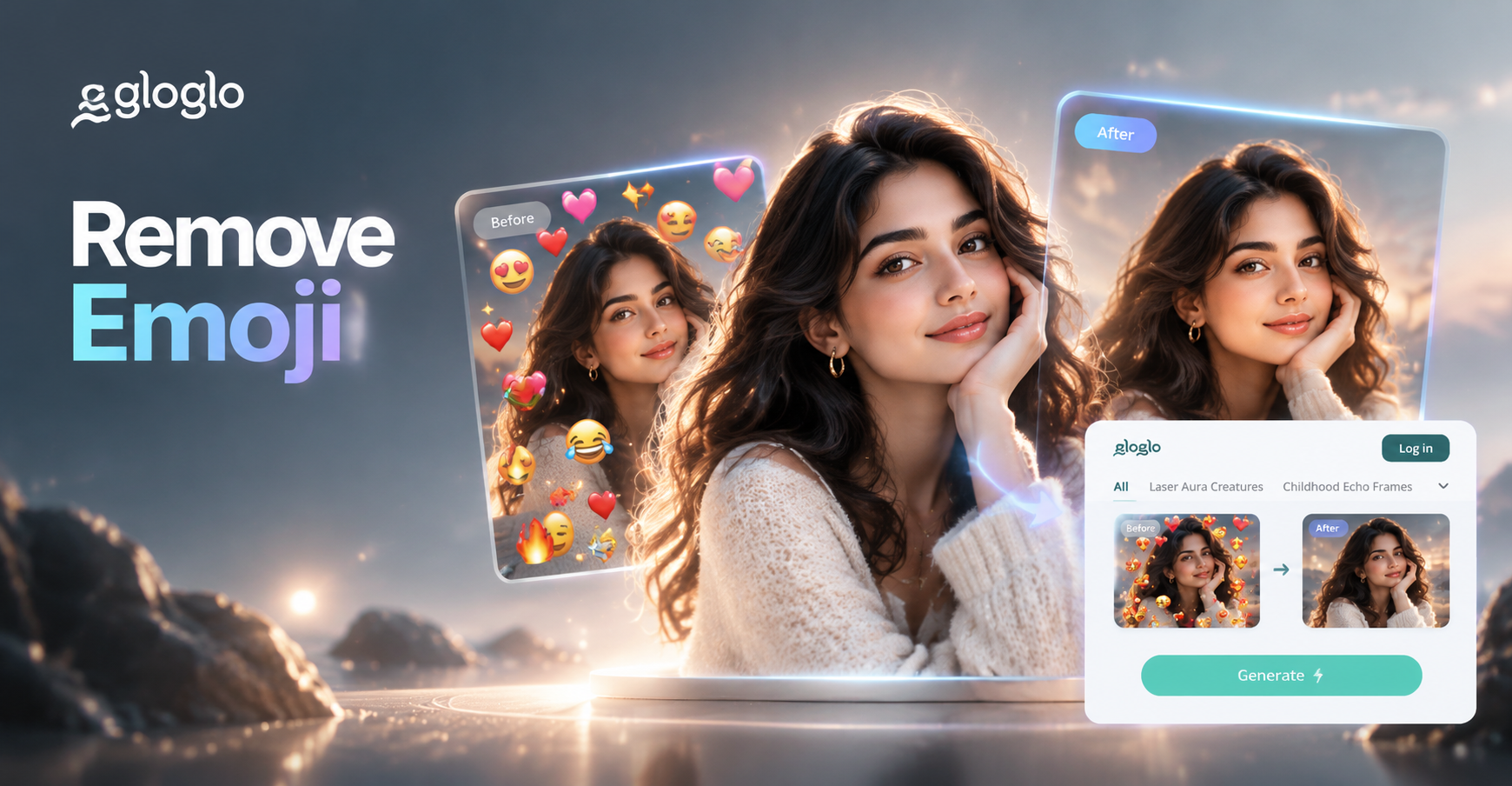
An emoji is a flat, colorful sticker that often sits directly on top of important parts of a photo. When you try to remove an emoji from a picture, you cannot simply delete it and leave a blank hole. The pixels underneath the emoji were replaced when the sticker was added. To clean the image, you need to rebuild the original face, texture, or background. This is why a basic eraser tool rarely gives good results.
The challenge becomes bigger when the emoji covers a complex area like a face, a patterned shirt, or a busy background. A good removal method must analyze the surrounding pixels and create new ones that match the original scene. AI photo editing apps are often the easiest solution because they can guess the missing content and blend it naturally.
What You Need Before You Start
Before you remove an emoji in a picture, gather the highest resolution version of the image you have. Screenshots and compressed social media copies lose detail, which makes reconstruction harder. If the photo came from your phone gallery, use the original file. If the emoji was added in a messaging app, check whether the app saved a clean copy before you added the sticker.
Also, think about what is covered. If the emoji covers a plain wall or sky, the fix is usually simple. If it covers a face, you may need an AI tool that understands human features. If it covers text or a logo, the result may look distorted unless the AI can reconstruct the letters.
Best Tools for Emoji Removal
There are three main types of tools you can use to remove an emoji from a picture. AI driven mobile apps, manual desktop editors, and online healing tools. Each has strengths.
- AI mobile apps: Apps like gloglo let you upload a photo and use AI image editing to generate a clean version. They are fast and work well for backgrounds and moderate face coverings.
- Manual editors: Programs like Photoshop, GIMP, and Photopea offer clone stamp and healing brush tools. They give you precise control but require more skill and time.
- Online object removal tools: Some websites offer free healing tools for simple cases. They are convenient but often reduce image size or quality.
For most people, an AI mobile app is the easiest way to remove an emoji from a picture because it does the reconstruction for you.
Why Use gloglo for Emoji Removal
gloglo is an all in one AI design tool available on Google Play for Android devices. It includes image to image generation, which can take your photo and produce a new version based on a text prompt. This is useful for emoji removal because you can describe the clean image you want and let the AI fill the emoji area with matching content. The app also has a huge library of style templates, but for cleanup you will mostly use the image to image mode with a direct prompt.
Because gloglo runs entirely on your phone, you do not need to transfer files to a computer. The process is designed to be simple enough for beginners, and you can try multiple generations until the emoji area looks natural.
How to Remove Emoji in Picture Step by Step with gloglo
Follow these steps to clean an emoji from a photo using the gloglo app.
- Download gloglo from Google Play. Install the app on your Android phone or tablet. Open it and sign in if needed.
- Upload your picture. Tap the image to image or photo editing option and choose the photo that has the emoji.
- Choose a mode. Select image to image generation. This mode uses your photo as the reference and applies your instructions to the whole image.
- Write a clear prompt. Describe the desired result in plain words. For example, you could type: same photo but remove the emoji and restore the original background, keep the person and lighting unchanged. The more specific you are, the better the result.
- Generate the image. Let the AI process the photo. If the first result still shows part of the emoji or looks odd, adjust your prompt and try again.
- Save and compare. Zoom in on the cleaned area. If it looks natural, save the image to your gallery. If not, try a different prompt or generation.
This method works best when the emoji covers a relatively small area of a background or a face with visible features around it. It may not be perfect on very complex textures, but you can often get a result good enough for social media.
Manual Techniques to Remove Emoji From a Photo
If you prefer desktop tools or want more control, manual editing can help. The healing brush and clone stamp tools are your best friends.
Using the Healing Brush
Open the photo in an editor like Photoshop, GIMP, or Photopea. Select the healing brush tool. Hold down the Alt key on Windows or Option key on Mac and click a clean area near the emoji to sample the texture. Then paint over the emoji. The tool blends the sampled pixels with the surrounding area. For best results, sample multiple times and paint in short strokes.
Using the Clone Stamp
The clone stamp copies pixels exactly from one area to another. It is better for areas with clear texture like grass, wood, or fabric. Select the clone stamp tool, sample a clean source, then click or paint over the emoji. Adjust the brush size and hardness to match the edge. Work slowly and change the sample point often to avoid repeating patterns.
Content Aware Fill
In Photoshop, use the lasso or pen tool to select the emoji. Then go to Edit and choose Content Aware Fill. Photoshop analyzes the surroundings and fills the selection with generated content. This is semi automatic and can produce good results in one step. You may need to clean the edges with the healing brush afterward.
Manual methods give you precise control, but they require practice. If the emoji covers a face, manual cloning can easily make the face look distorted because it is hard to rebuild features accurately by hand.
Specific Scenarios and How to Handle Them
Emoji on a Plain Background
If the emoji sits on a blank wall, sky, or solid color, both AI and manual tools work well. In a manual editor, the healing brush or content aware fill will produce clean results. In gloglo, a simple prompt like remove the emoji and restore the plain background is usually enough.
Emoji on a Face
When an emoji covers the eyes, mouth, or nose, the recovery is more difficult. AI tools that understand faces are the best option because they can rebuild missing features based on the rest of the face. Include a prompt that names the visible features and asks for a natural face. Avoid manual cloning on facial features unless you are experienced, because the proportions can easily look wrong.
Emoji on Text or a Logo
Text is very hard to reconstruct because every letter is specific. If the emoji covers part of a word, the AI may create gibberish letters. In this case, it is often faster to use the original photo or retype the text in a separate design tool. If retyping is not possible, manual cloning of similar letterforms can work for a single missing character, but the result may not be perfect.
Emoji on Clothing or Fabric
Clothing has patterns, folds, and lighting that need to be continued. Use the clone stamp tool to copy a nearby part of the fabric and paint over the emoji. Work in the direction of the folds. For AI tools, mention the clothing color and pattern in the prompt to help the model generate a realistic continuation.
Tips for a Natural Looking Result
- Use a high resolution source. The more detail the AI or healing tool has to work with, the better the reconstruction.
- Match lighting and shadows. If you manually clone, sample from an area with the same brightness and angle. Mismatched shadows look fake.
- Zoom in and work slowly. Small, careful edits produce cleaner results than broad strokes.
- Try multiple generations. AI results vary, so do not settle for the first output. Small prompt changes can fix the emoji area.
- Keep skin texture moderate. Avoid over smoothing the face. A little natural texture makes the edit invisible.
Common Mistakes When Removing an Emoji in Picture
Many people start with the eraser tool and end up with a white or checkered hole. That is not removal. Another mistake is using a large healing brush over a face, which creates a blurry, unrecognizable patch. Ignoring perspective is also common, especially on patterned walls or floors. If the new pixels do not follow the original lines, the edit is obvious.
Relying on a single low resolution screenshot is another issue. If the emoji covers a face and the only copy is a 200 pixel wide image, no tool can recover the lost detail. In that case, the best option may be to crop the emoji out if it is near the edge, or to use the original photo if you have it.
What to Do When Emoji Removal Is Not Perfect
Sometimes the AI cannot rebuild the covered area perfectly. If the emoji covered a unique piece of text, a specific logo, or a person's entire face, the result may look wrong. In those situations, think about the goal. For a quick social media post, a slightly imperfect cleanup is often fine. For a printed photo or a professional image, you may need to ask the original sender for a clean version.
You can also combine methods. Use AI to do the first pass, then open the result in a manual editor to fix small imperfections with the healing brush. This hybrid approach gives you the speed of AI and the control of manual editing.
Frequently Asked Questions About Removing Emoji From Pictures
Can I remove an emoji from a picture for free?
Yes. You can use free manual editors like Photopea or GIMP to clone over the emoji. Some AI apps also offer free credits or a free trial. gloglo lets you try the image to image mode on your Android phone, and you can generate a few test results before deciding on a paid plan.
How do I remove an emoji from a picture on my phone?
If you use an Android device, download gloglo from Google Play, upload the photo, choose image to image, and enter a prompt asking for the emoji to be removed. For other devices, use a web based editor like Photopea and the healing brush tool. Transfer the photo if needed.
Does removing an emoji reduce image quality?
AI tools usually preserve the original resolution and can even sharpen the result. Manual healing can slightly blur the edited area if you brush too heavily, but a light touch keeps quality high. Always save a copy and compare at 100 percent zoom.
What if the emoji covers a face?
AI image editing is your best option because it understands facial features and can reconstruct the covered parts based on the visible areas. Manual cloning is harder and often looks unnatural. Use a prompt that mentions restoring the face naturally, keeping the same expression and lighting.
Are there apps specifically for removing emojis from photos?
There are object removal apps and AI photo editors that include this capability. gloglo is not exclusively an emoji remover, but its image to image mode can be used for this purpose. The advantage is that you also get access to many other creative AI tools in the same app.
Is it legal to remove an emoji from a picture?
If you own the photo or have permission from the owner, editing it is generally fine. Do not remove watermarks, credits, or emojis that serve as someone else's branding without permission. For personal photos and your own social media content, removing an emoji you added is perfectly acceptable.
Can I remove an emoji that was already saved into the image by someone else?
Yes, if the image file has the emoji baked in, you can still use the same AI or manual tools to attempt removal. The result depends on how much of the original detail remains. If the emoji is a separate layer in an editing file, you can simply hide or delete that layer, but screenshots and exported images do not keep layers.
Final Thoughts on Emoji Removal
Removing an emoji from a picture is a common editing task, but it requires the right approach. A simple eraser will not work because the original pixels are gone. Instead, use an AI mobile app like gloglo to generate a clean version, or learn the healing brush in a manual editor. For most people, the easiest path is to download gloglo, upload the photo, and describe the clean image you want. The app handles the reconstruction and lets you try again until the result looks natural.
Whichever method you choose, start with the best quality image you have and work carefully. Compare the cleaned area at full zoom, watch for repeated patterns or blur, and make small adjustments. With a little practice, you can remove emoji from pictures cleanly and keep your photos looking exactly the way you want.